|
Permission
|
Affects
|
|
Add Rights >> Dashboards
|
Create new Dashboard (or Copy Dashboard)
|
|
Add Rights >> Data
|
Adding Data or Notes
|
|
Add Rights >> Desktops
|
Save Static and Dynamic Desktops
|
|
Add Rights >> Filters
|
Create new Filter (or Copy Filter)
|
|
Add Rights >> Report Formats
|
Create new Report Format (or Copy Report Format) including Dynamic Reports, Inspections, Dashboards, Dashboard Retrievals, statistics lists, and data & detail columns formats
Dynamic Reports 2 module - Import reports and Import All Legacy reports
|
|
Add Rights >> Sessions
|
(Legacy modules only)
|
|
Add Rights >> Standards and Processes
|
Add Standards and Processes
|
|
Change and Edit Rights >> .Launch Settings
|
Edit .Launch settings
|
|
Change and Edit Rights >> Allow overrides >> Chart settings
|
Show Chart overrides branch on Settings dialog in GainSeeker Charts
|
|
Change and Edit Rights >> Allow overrides >> Retrieval and configuration settings
|
Show Retrieval/Configuration branch on Settings dialog in GainSeeker Charts
|
|
Change and Edit Rights >> Allow overrides >> Standard settings
|
Show Standard overrides branch on Settings dialog in GainSeeker Charts
|
|
Change and Edit Rights >> Anchor
|
Edit the Anchor Point value of a Data Record
|
|
Change and Edit Rights >> Background Picture
|
(Legacy modules only)
|
|
Change and Edit Rights >> Bypass
|
Edit the Bypass value of a Data Record
|
|
Change and Edit Rights >> Corrective Action
|
Edit Corrective Action (Event, Cause, Action Taken) of a Data Record
|
|
Change and Edit Rights >> Current Report
|
Change Statistics List report format that is displayed
|
|
Change and Edit Rights >> Dashboard or Dynamic Report Before Viewing
|
Edit Dashboard
Edit/Open Dashboard
Manage Retrievals and Assign Retrievals to a Dynamic Report for Dynamic Reports 2
Edit Dynamic Report Design for Legacy Dynamic Reports
|
|
Change and Edit Rights >> Data
|
Edit Data Record values (including Traceability values)
|
|
Change and Edit Rights >> Data Table Columns
|
Change Data Columns report format that is displayed
|
|
Change and Edit Rights >> Desktop/Report Values (prompt for changes)
|
Edit/Open for Desktops and Dynamic Reports 2
Prompt before viewing Report for Legacy Dynamic Reports
|
|
Change and Edit Rights >> Edit Filter
|
Edit Filters (SPC, DMS, Statistics)
|
|
Change and Edit Rights >> Edit Report Format
|
Edit Report Format (Statistics List, Data Columns, Detail Columns, Control Chart Data Grid Columns)
Edit and Save changes to Report Design for Dynamic Reports 2
Save changes to Report Design for Legacy Dynamic Reports
|
|
Change and Edit Rights >> Fonts and Colors
|
(Legacy modules only)
|
|
Change and Edit Rights >> Locked Items
|
Allow user to edit Locked items in GainSeeker Inspections, Python Scripts, Chart Skins, Dashboard retrievals, Dashboards, Dynamic Reports 2
|
|
Change and Edit Rights >> Monitor Status
|
(Legacy modules only)
|
|
Change and Edit Rights >> Notes
|
Edit the Note of a Data Record
|
|
Change and Edit Rights >> Show Bypass On List
|
(Legacy modules only)
|
|
Change and Edit Rights >> Standards and Processes
|
Edit a Standard or Process
|
|
Chart Menu >> Chart Titles
|
Change the Chart Titles
|
|
Chart Menu >> Define Button For Chart Titles
|
(Legacy modules only)
|
|
Chart Menu >> Display Options
|
(Legacy modules only)
|
|
Chart Menu >> Group Data
|
Change Group Data (SPC, Pareto, DPU, OEE)
|
|
Chart Menu >> Legend
|
View Chart Legend
|
|
Chart Menu >> Scaling
|
Change/Use Chart Manual Scaling
|
|
Chart Menu >> Variation Or Drill-Down Wizard
|
Run Variation or Drill-Down Wizards
|
|
Data Entry >> Edit Data From Chart
|
In PC Collect, right-click on a data table and edit the data and traceability for a data record
|
|
Data Entry >> Edit Data OK
|
(Legacy modules only)
|
|
Data Entry >> Edit Note From Chart
|
In PC Collect, right-click on a data table and edit the note for a data record
|
|
Data Entry >> File Close
|
(Legacy modules only)
|
|
Data Entry >> File Exit
|
(Legacy modules only)
|
|
Data Entry >> File Open >> Planned Session & Planned Inspection
|
(Legacy modules only)
|
|
Data Entry >> File Open >> Quick Start
|
(Legacy modules only)
|
|
Data Entry >> File Open >> Stored Session
|
(Legacy modules only)
|
|
Data Entry >> File Open >> Template & Inspection
|
(Legacy modules only)
|
|
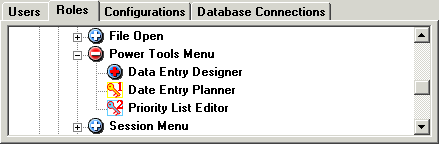
Data Entry >> Power Tools Menu >> Data Entry Designer
|
(Legacy modules only)
|
|
Data Entry >> Power Tools Menu >> Data Entry Planner
|
(Legacy modules only)
|
|
Data Entry >> Power Tools Menu >> Priority List Editor
|
(Legacy modules only)
|
|
Data Entry >> Session Menu >> Data Entry
|
(Legacy modules only)
|
|
Data Entry >> Session Menu >> Date Time
|
(Legacy modules only)
|
|
Data Entry >> Session Menu >> Real Time
|
(Legacy modules only)
|
|
Data Entry >> Session Menu >> Refresh
|
(Legacy modules only)
|
|
Data Entry >> Session Menu >> Skip Characteristics
|
(Legacy modules only)
|
|
Data Entry >> Session Menu >> Statistics
|
(Legacy modules only)
|
|
Data Entry >> Session Menu >> Undo!
|
(Legacy modules only)
|
|
Data Entry >> Setup DMS Data Entry Options
|
(Legacy modules only)
|
|
Data Entry >> Switch To Full Trace List
|
(Legacy modules only)
|
|
Data Entry >> Terminate Timed Session
|
(Legacy modules only)
|
|
Data Entry >> View Hidden Templates
|
(Legacy modules only)
|
|
Delete Rights >> Audit Trail
|
Delete an Audit Trail record
|
|
Delete Rights >> Dashboard Retrievals
|
Delete Dashboard retrievals (also need Delete Rights >> Report Formats)
|
|
Delete Rights >> Dashboards
|
Delete Dashboards (also need Delete Rights >> Report Formats)
|
|
Delete Rights >> Data
|
Delete a Data Record or a Note from a Data Record
|
|
Delete Rights >> Desktops
|
Delete a Desktop
|
|
Delete Rights >> Filters
|
Delete a Filter
|
|
Delete Rights >> Monitor records
|
(Legacy modules only)
|
|
Delete Rights >> Planned Sessions
|
(Legacy modules only)
|
|
Delete Rights >> Range
|
Delete a Range of Data, Standards, or Process Specifications
|
|
Delete Rights >> Report Formats
|
Delete Report Format (Dynamic Reports, Statistics List, Data Columns, Detail Columns, Control Chart Data Grid Columns, Dashboard, Dashboard Retrievals, Inspections, Planned Inspections)
|
|
Delete Rights >> Standards and Processes
|
Delete Standards, Processes, or Process Specifications
|
|
Delete Rights >> Stored Sessions
|
(Legacy modules only)
|
|
Miscellaneous >> Add and Edit Python Scripts
|
Add or Edit Python Scripts
|
|
Miscellaneous >> Execute Non-Embedded Python Script, Start & Stop GS Console Manager Groups
|
Allow the Start Python function in PC Collect
Allow the Start Group and Stop Group buttons in GS Console
|
|
Miscellaneous >> Modify Login >> Change Configuration
|
Change Configuration from File menu in most modules
|
|
Miscellaneous >> Modify Login >> Change Password
|
Change Pasword from File menu in most modules
|
|
Miscellaneous >> Modify Login >> Login or Logout
|
Login from File menu in most modules
|
|
Miscellaneous >> Monitor Database Integrity
|
(Legacy modules only)
|
|
Miscellaneous >> Monitor Options Menu
|
(Legacy modules only)
|
|
Miscellaneous >> Reset Password Utility >> Show Passwords That Are Not Expired
|
Show passwords that are not expired
|
|
Miscellaneous >> Reset Password Utility >> Show Passwords That Never Expire
|
Show passwords that never expire
|
|
Miscellaneous >> Save As Default >> Local
|
(Legacy modules only)
|
|
Miscellaneous >> Save As Default >> Shared
|
(Legacy modules only)
|
|
Miscellaneous >> See all users, roles and configurations
|
Allow user to view users, roles, and configurations other than his/her own in the Administration module
|
|
Miscellaneous >> View Audit Trail tab - Data
|
Show Audit Trail tab on Edit Data dialog (if applicable)
|
|
Miscellaneous >> View Audit Trail tab - Standards
|
Show Audit Trail tab on Edit Standard dialog (if applicable)
|
|
Miscellaneous >> Web Access >> Links
|
Allow user to click links on Help menu and Help About dialog
|
|
Miscellaneous >> Web Access >> Update Notification
|
Allow user to check for updates from Help menu
|
|
Module Access >> .Launch
|
Run .Launch
|
|
Module Access >> Administration
|
Run the System Administration module, use GainSeeker Utility module to Export All Control Files
|
|
Module Access >> Data Entry Template Designer, GainSeeker Inspections, & GS Console Manager Setup
|
Run the SPC Designer module
Run the GainSeeker Inspections module
In the GS Console Manager module, use the Set Up Colors button and the Set Up Groups button
|
|
Module Access >> DMS Charts & Reports
|
(Legacy) Run the DMS Charts & Reports module
|
|
Module Access >> DMS Data Entry
|
(Legacy) Run the DMS Data Entry module
|
|
Module Access >> Dynamic Reports
|
Run the Dynamic Reports 2 module and the Legacy Dynamic Reports module
|
|
Module Access >> Enterprise Dashboard
|
(Legacy) Run the Enterprise Dashboard module
|
|
Module Access >> GainSeeker Charts (SPC, DMS, Dashboard)
|
Run GainSeeker Charts
|
|
Module Access >> GS Analyze
|
Run GS Analyze
|
|
Module Access >> Import Export
|
Run Import/Export Data from GainSeeker Utility
|
|
Module Access >> Monitor
|
(Legacy) Run the Monitor module
|
|
Module Access >> PC Collect & GS Console
|
Run PC Collect, GS Console, and GS Console Manager modules
|
|
Module Access >> Planner
|
(Legacy) Run the Planner module
|
|
Module Access >> SPC Charts & Reports
|
(Legacy) Run the SPC Charts & Reports module
|
|
Module Access >> SPC Data Entry
|
(Legacy) Run the SPC Data Entry module
|
|
Module Access >> Utilities >> Audit Trail
|
Run Audit Trail from GainSeeker Utility
|
|
Module Access >> Utilities >> Note Manager
|
Run Note Manager from GainSeeker Utility
|
|
Module Access >> Utilities >> Pervasive Tools
|
Run the Pervasive Tools module
|
|
Module Access >> Utilities >> Priority List Editor
|
Run Priority List Editor from GainSeeker Utility
|
|
Module Access >> Utilities >> Reset Password Utility
|
Run Password Reset Utility
|
|
Module Access >> Utilities >> SQL Utility
|
Run SQL Utility from GainSeeker Utility
|
|
Module Access >> Utilities >> Standard Duplicator
|
(Legacy) Run the Standard Duplicator
|
|
Module Access >> Utilities >> Standard Utility
|
Run Standard Utility from GainSeeker Utility
|
|
Module Access >> Utilities >> Transfer Utility
|
Run Report Transfer from GainSeeker Utility
|
| Send To >> Artificial Intelligence |
Send Statistics or Notes to AI link for analysis from GainSeeker Charts and GainSeeker Utility |
|
Send To >> Clipboard
|
Send information to Clipboard
|
|
Send To >> Email
|
Send information to Email
|
|
Send To >> File
|
Send information to File
|
|
Send To >> Printer Or Editor
|
Send information to Printer, Application, Word, PowerPoint, Power BI, Excel, Teams, WordPad, MINITAB, JMP, or Editor (like NotePad)
|
|
Setup Menu >> Corrective Action Lists
|
Edit Corrective Action Lists (Event, Cause, Action Taken) from GainSeeker Charts, GainSeeker Inspections, and PC Collect
|
|
Setup Menu >> MINITAB Chart Windows
|
Setup MINITAB links in GainSeeker Charts
|
|
Setup Menu >> Processes
|
Edit Processes from GainSeeker Charts, GainSeeker Inspections, GainSeeker Utility, and PC Collect
|
|
Setup Menu >> Standards
|
Edit Standards from GainSeeker Charts, GainSeeker Inspections, GainSeeker Utility, and PC Collect
|
|
Setup Menu >> Store Gates
|
Store Gates from current data retrieval in GainSeeker Charts
|
|
Setup Menu >> Store Target Values
|
Store Target value from current data retrieval in GainSeeker Charts
|
|
Setup Menu >> Traceability Lists
|
Edit Traceability Lists from GainSeeker Charts, GainSeeker Inspections, and PC Collect
|
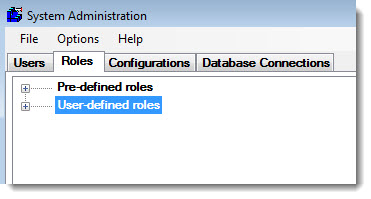
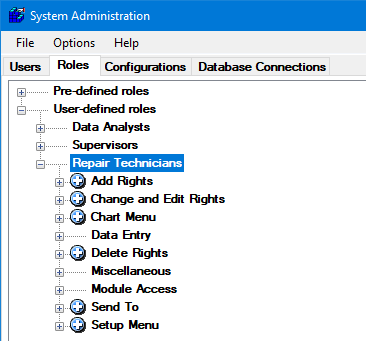


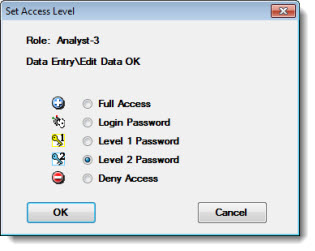
 or
or  symbol, you can set the Access Level for the group to Full Access and Deny Access: