Roles
GainSeeker allows you to define a different role for each type of user. The roles control the users' ability to access different modules and features of the GainSeeker program. After you set up the roles needed at your organization, you can assign a role to each user.
A role can be granted full access to a given function in the program or denied access to that function. For most functions, a role can be required to enter a password (if that password is not blank) before accessing the function.
GainSeeker is installed with four pre-defined roles. You may view and copy these roles, but you cannot edit or delete them. You may assign these pre-defined roles to users or use them to create your own customized roles.
The Analyst role is designed for people whose primary responsibility is drawing charts and printing reports. Full access is provided for most of the analysis and data entry functions. Some of the change, delete and setup functions require a password (if that password is not blank) or are denied for this role.
The Data Entry Operator role is designed for data entry operators. Operators have full access to enter new data, but editing or deleting data requires a password (if that password is not blank). Access to the charting and reporting modules is also password-protected, and this role is denied access to all system administration functions.
The Full rights role has full access to every module and function in the system (except the password reset utility). It is strongly recommended that any user that is assigned to this role be assigned a login password, and that a user assigned to a more limited or more password-protected role be used for most day-to-day activities.
The No rights role is denied access to all functions in GainSeeker. It is a useful starting point when you want to create a new role that is denied access to most GainSeeker functions, so that you can just enable access to the limited functions that are needed for the new role.
To begin setting up roles:
Launch the Administration module
 from the Start menu
or from the LaunchPad module.
from the Start menu
or from the LaunchPad module.When prompted, log in as a user with rights to use this module. If you have not yet set up GainSeeker users, choose SPC MANAGER.
On the System Administration window, click the Roles tab.
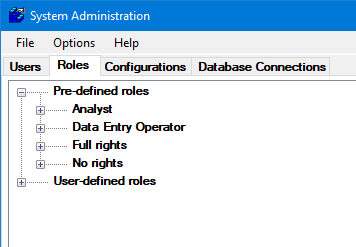
On this tab, you can perform any of the following:
To quickly view which users are assigned to a role, right-click on the role and then click Used By.
To quickly compare the settings for two roles, right-click on one role and then click Compare with. When the list of roles is displayed, click the name of the other role and then click OK. This will launch a text file that lists which settings differ from one role to the next.
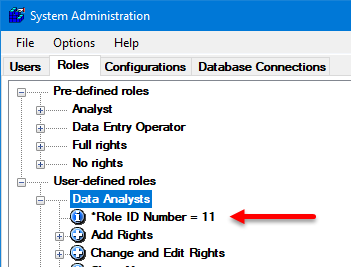
To quickly view the internal ID number that was automatically assigned to any role, expand the tree for that role and look for the *Role ID Number.