AI Analyst dashboard control
 The AI Analyst(Artificial Intelligence Analyst) control allow you to send a list of statistics to an Artificial Intelligence (AI) link and display the analysis in a HTML web browser. This control can automatically refresh at a user-defined time interval or it can refresh along with the dashboard window.
This is an example of an AI Analyst dashboard control displaying analysis results on the dashboard window:
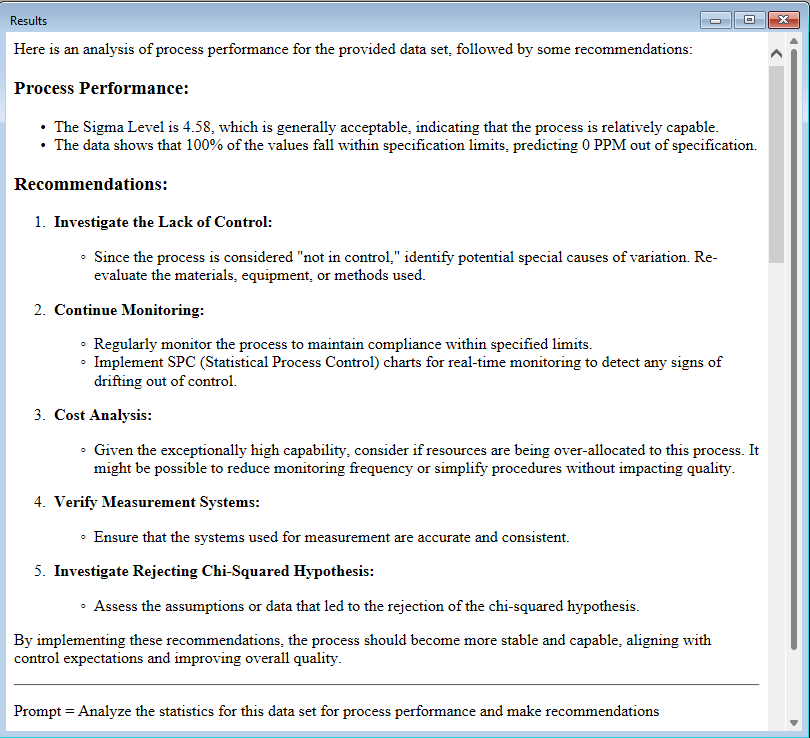
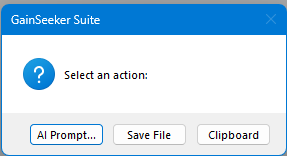
Note: The AI Analyst dashboard control on a dashboard in run mode displays a Microsoft Internet Explorer right-click menu. Please refer to Internet Explorer for documentation relevant to this topic. Double-click on the results window to get a dialog of options to change the prompt, save the results to a file, or send the results to the clipboard.
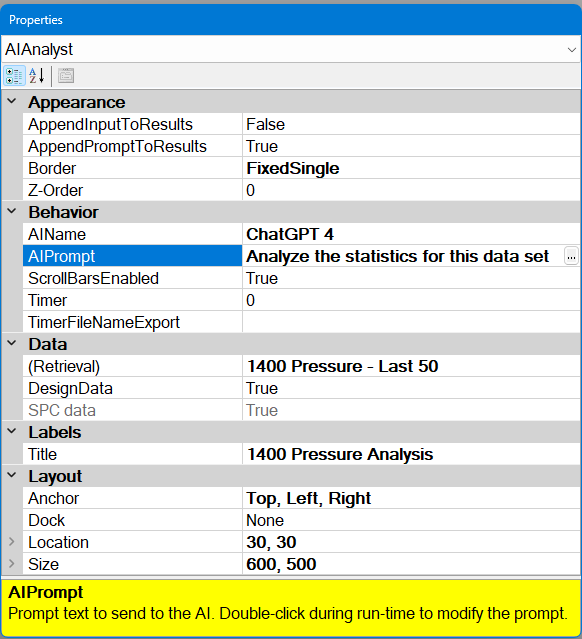
The AI Analyst control Properties dialog options
Some of the AI Analyst control properties (attributes) may be familiar in usage and may not require additional explanation. Many of the properties featured in this topic are specifically designed for GainSeeker users.
See Using the Properties dialog
Adding an AI Analyst control to the dashboard window
Click the AI Analyst button on the dashboard controls toolbar on a dashboard window that is open in design/edit mode.

The Dashboard Control Retrieval dialog opens.
See Using the Dashboard Control dialog
Using the Dashboard Control Retrieval dialog
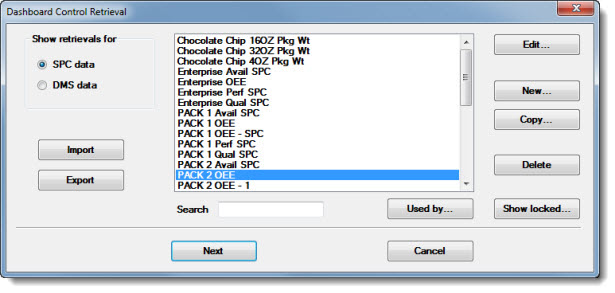
- Click the name of a preexisting retrieval to select it or create a new retrieval. See Using the Dashboard Control Retrieval dialog for more information on the dialog options, including importing, exporting, editing, creating, and copying retrievals.
-
Click Next or OK on the Dashboard Control Retrieval dialog after a retrieval is selected.
Editing the AI Analyst control properties
To select the AI Analystcontrol for edit:
-
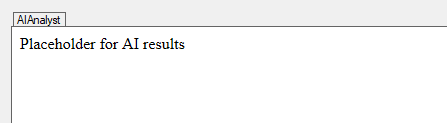
Click the AIAnalyst tab on the upper-left corner of the control on a dashboard window that is open in design/edit mode, or
-
Click AIAnalyst in the drop-down list on the Properties dialog on a dashboard window that is open in design/edit mode.
The properties grid on the Property dialog displays the property values specific to that control.
Editing the (Retrieval) property value
To change the (Retrieval) property setting in the Properties Dialog:
- Click the (Retrieval) property value cell in the Data category.
-
Click the ellipsis button in the property value cell.
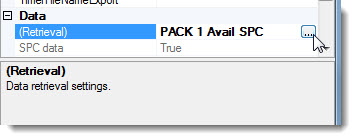
The Dashboard Control Retrieval Dialog opens. See Using the Dashboard Control Retrieval dialog
Editing the AIName property value
The AIName is the name of the AI link to use when sending the statistics for analysis. Artificial Intelligence links are set up in the System-wide settings section of the Administration module. The Name of the link selected will also determine the default prompt (which can be edited) and which statistics are sent for analysis. Statistics are set for each link when the link is set up.
Editing the AIPrompt property
Set the prompt to send to the AI link with the statistics. The prompt is one of the most important things when analyzing the statistics that are sent to an AI website. Depending on the prompt used, totally different results may get returned.
Editing the AppendInputToResults property
Set to True to append the statistics that are sent to the AI link to the results.
Editing the AppendPromptToResults property
Set to True to append the prompt that is sent to the AI link to the results.
Editing the Title property
If set, the Title is placed at the top of the results in the dashboard control before any results.
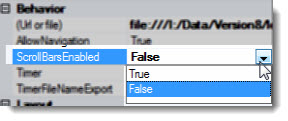
Editing the ScrollBarsEnabled property
Here is an example of scrollbars on a AI Analyst control on a dashboard window in run mode:
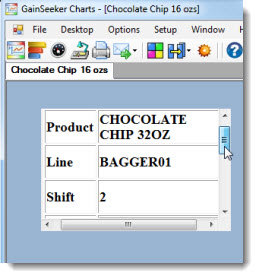
To set the ScrollBarsEnabled property value:
- Click the ScrollBarsEnabled drop-down list in the property value cell in the Behavior category. Then:
-
Click True to enable the scrollbars function, or
- Click False to disable the scrollbars function. (The scrollbars will not show on the control in run mode.)
Editing other AI Analyst properties
For information about editing some of the other AI Analyst properties, see:
-
Using the Timer property
-
Using the TimerFileNameExport property
-
Z Order property
-
Design Data property
Changing the AI Analyst control location on the dashboard
There are two ways to change the location of the dashboard control on the dashboard:
-
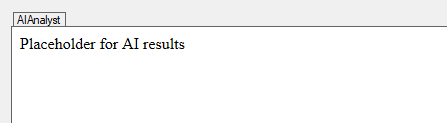
Click and hold the control tab (upper left corner) while dragging (moving) the control to a new location on the dashboard window.
- Expand the Location property value cell under Layout in the Properties dialog box. Then, select the numeric values in the Location or X or Y property value cells and enter a numeric value for the new location of the control.