Artificial Intelligence links
GainSeeker can be set up to send selected statistics to AI websites for deeper analysis.
 Security statement: Typically, the API endpoints we use do not use data we submit for training purposes. They do not retain the application state, but the text is retained for 30-90 days for “abuse monitoring retention”. Unless a lawsuit is filed, the text is deleted after 30-90 days. Check with your provider for more details.
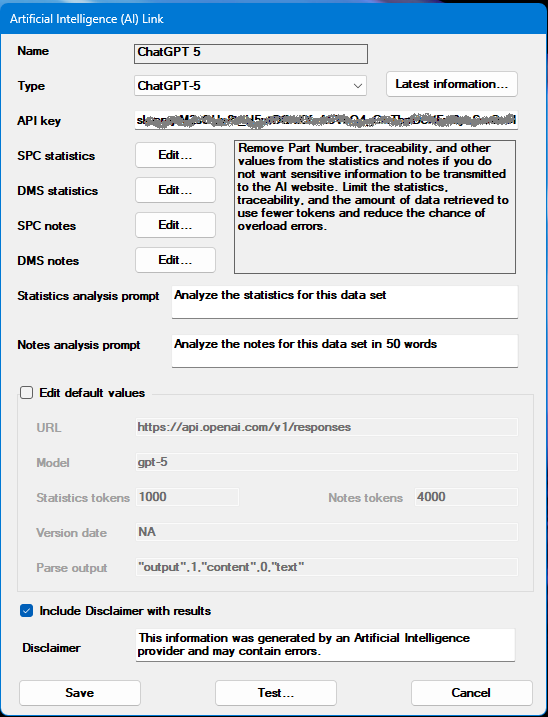
An account with one of the supported AI websites must be created and an API key must be obtained to use this feature.
Overview
Creating an account and obtaining an API key
To use the Send To Artificial Intelligence feature, you must create an account and receive an API key from one of the supported AI websites. The currently supported AI providers are:
- ChatGPT-4 (https://openai.com/api/)
- ChatGPT-5 (https://openai.com/api/)
- Claude-4 (https://www.anthropic.com/api)
- Gemini (https://ai.google.dev/)
- Perplexity (https://www.perplexity.ai)
The information provided by AI resources may include errors, hallucinations, or inaccuracies. Verifying information from trusted sources and being aware of the potential for errors or fabricated content can help mitigate the risks associated with AI outputs. Hertzler Systems is not responsible for the accuracy or veracity of output created by AI resources.
Creating an AI link
Artificial Intelligence (AI) links are created in the System-wide settings section of the System Administration module.
-
Navigate to the Configurations tab in the System Administration module. Expand the System-wide settings tree.
-
Right-click or double-click Artificial Intelligence (AI) links.
-
Select which configuration to use for the statistics and traceability labels when editing the statistics and note fields to be sent for analysis.
The Artificial Intelligence (AI) links dialog is displayed. This dialog allows the user to manage links by creating new, copying, deleting, or editing existing links.
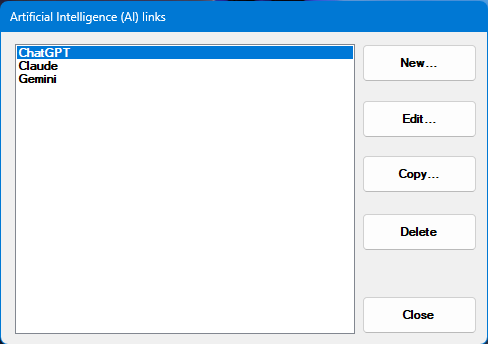
Configuring an AI link
When creating new or editing links, the Artificial Intelligence (AI) link dialog is displayed.
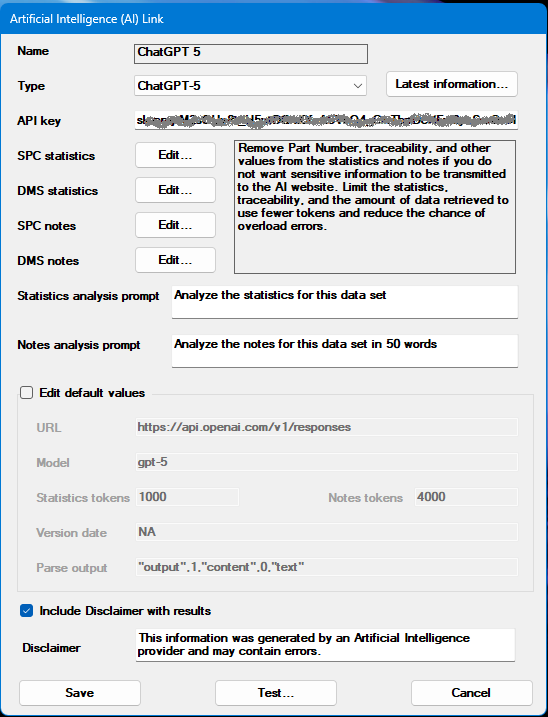
To integrate an AI link with GainSeeker, follow these steps in the order presented.
A. Select the type of link
The currently supported AI providers are:
- ChatGPT-4 (https://openai.com/api/)
- ChatGPT-5 (https://openai.com/api/)
- Claude-4 (https://www.anthropic.com/api)
- Gemini (https://ai.google.dev/)
- Perplexity (https://www.perplexity.ai)
B. (optional) Check for the latest information on AI links
Click the Latest Infomation... button for up to the minute information on support for newer or updated API options. This will display information about which version of GainSeeker has support for newer API models. It will also display if newer models can be supported in your current version by changing default values.
C. Enter your API Key
To use the Send To Artificial Intelligence feature, you must create an account and receive an API key from one of the supported AI websites. Once you receive an API key, enter it in the API Key section.
D. Select statistics
A new link will have a default set of statistics for SPC and DMS charts. These statistics, along with the prompt, are what is sent to the AI website for analysis. You can add and remove statistics as needed to customize the analysis you want. The more information that is sent to the AI website for analysis, the higher the cost.
E. Select notes
A new link will have a default set of data fields to send with SPC and DMS notes. These data fields, along with the prompt, are what is sent with the notes to the AI website for analysis. You can add and remove fields as needed to customize the analysis you want. These data fields help give context to the notes, such as Line number or Shift. The more information that is sent to the AI website for analysis, the higher the cost.
F. (optional) Edit your prompts
You can set the default prompt for analysis of both the statistics and notes. The prompt is one of the most important things when analyzing the statistics and notes that are sent to an AI website. Depending on the prompt used, totally different results may get returned. The default prompt is entered when creating a new link, but this prompt can be edited into something more specific. There are entire volumes dedicated to properly crafting prompts to get the desired results. Some examples of different prompts that return different results are:
- Analyze the statistics for this data set
- Analyze the statistics for this data set and write an executive summary for a presentation
- Analyze the statistics for this data set and write an executive summary for a presentation. Assume executives don't understand statistics
- Analyze the statistics for this data set and write an executive summary for a presentation. Assume executives don't understand statistics. Keep the word count to less than 100 words
- Analyze the statistics for this data set and make recommendations
- Analyze the statistics for this data set and make recommendations. Explain your reasoning for the recommendations
- Using minimal reasoning, analyze the statistics for this data set
G. (optional) Edit default values
The default values are pre-filled depending on the Type of link that is selected. Typically, these values will not need to be changed. If something does need to change, such as future models, these values can be edited by clicking the Edit default values checkbox. Editing default values should only be done by someone with knowledge of what AI websites are expecting when a post is made to the URL, and how to parse the return values into meaningful output.
Not all values are used by every AI provider, therefore changing some default values may not have any affect on the what is sent to the AI provider.
AI tokens are the base units of text that these models use to understand natural language. The more tokens used, the better the model's performance. But most providers charge by tokens used, so caution and common sense should be used when editing the MAX_TOKENS value. Typically, analysis of notes takes more tokens than analysis of statistics and should be set higher.
H. (optional) Edit the Disclaimer
Check the Include Disclaimer with results checkbox to include a disclaimer with each AI request. Edit the disclaimer, if needed, to provide the message you want displayed with the results. The disclaimer appears at the top of the results and can be formatted using Markdown elements.
I. (optional) Test your link
Click the Test button. This will send a simple request to the AI website to ensure that the link is configured correctly. If no errors are reported, your link is configured and ready to save.
J. Save your link
Click the Save button when your link configuration is complete.