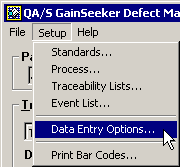
The menus and menu options available in the DMS Data Entry module depend on the rights granted to the User or Group Name you used to log in.
Menu option |
Explanation |
Save / Same Part Number and Process |
Saves the data on your screen and immediately prompts you to select a different standard. For more information, see Saving the defect data. |
Save / Change Part Number and Process |
Saves the data on your screen and allows you to continue entering data for this standard. For more information, see Saving the defect data. |
Note |
Allows you to enter a note and/or an event for the data on your screen. For more information, see Adding Notes and Events. |
Change Part Number and Process |
Allows you to select the standard for which you want to enter data. For more information, see Selecting the standard. |
Summary |
Displays a summary of the selected defects on your screen. For more information, see Reviewing the defect data. |
Show Data |
Displays a data table of the most recent data for the standard displayed on your screen. For more information, see Viewing and editing historical data. |
Login |
Allows you to immediately log in to the DMS Data Entry module with a different user or group name. For more information, see Logging in and out. |
Logout |
Logs you out of the DMS Data Entry module and displays the Login screen for the next user. For more information, see Logging in and out. |
Change Configuration |
Change to a different GainSeeker configuration but keep the permissions (role) of the current user or group name. For more information, see Logging in and out. |
Change Password |
Allows you to change the password for the User or Group Name you used to log in to the DMS Data Entry module. For more information, see Logging in and out. |
Exit |
Closes the DMS Data Entry module. |
Menu option |
Explanation |
|
Standards |
Allows you to add, modify and delete DMS standards. For more information, see DMS Standards.
|
|
Process |
Allows you to add, modify and delete DMS processes. For more information, see Process Information.
|
|
Traceability Lists |
Allows you to configure and edit traceability fields (e.g., Operator, Shift, etc.) and the pre-defined lists for these fields. For more information, see Traceability Labels and Lists. |
|
Event List |
Allows you to configure and edit the pre-defined list of events for DMS. For more information, see Event List. |
|
Data Entry Options |
Allows you to customize DMS Data Entry features including bar code data entry, manual or automatic date/time stamp, the number of rows on a data table, data entry screen layout, summary and save options, and change part number options. For more information, see Settings that affect all DMS Data Entry workstations. |
|
Print Bar Codes |
Allows you to print a page of bar codes for use with the DMS Data Entry module. For more information, see Bar Code data entry. |
The Help menu contains the following options:
Contents
Launches the GainSeeker Online User Guide.
For more information, see Finding Information in the Online User Guide.
Technical Support
Provides a link to the Hertzler Systems web page for Support on GainSeeker products.
Software Training
Provides a link to open the Hertzler Systems web page for Training on GainSeeker products.
About
Displays your program serial number, version number, and other information.
For the SPC Data Entry module and for legacy GainSeeker modules such as SPC Charts and Reports, DMS Charts and Reports, and Enterprise Dashboard, clicking the User status button displays additional technical information on your GainSeeker user or group name and configuration . For details, see User or Group Status.
More:
