Changing the scaling on charts
When any type of control chart or histogram is displayed on your screen, you can change the way that data points are plotted relative to the y-axis of charts.
To change the scaling of a chart, right-click on the chart and then click Scaling. Alternatively, choose Scaling from the Options menu.
This feature is not available in PDA mode or for Normal Probability Plot, Performance Chart, MINITAB charts, or any multiple retrieval charts.
Manually scaling for control charts
The X-bar, Moving Range, and Range elements of control charts can be manually scaled. Depending on the type of control chart, some of these options may not be available.
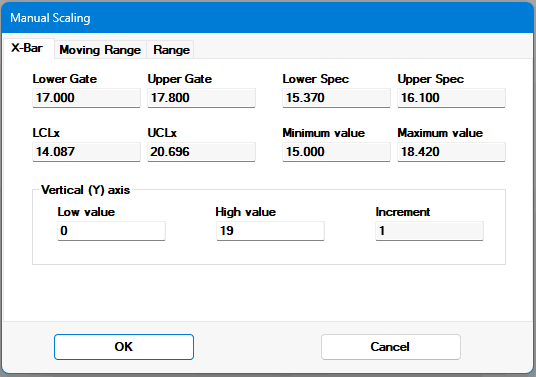
At the top of the X-Bar Chart tab, the program displays the gate limits ( LG and UG), specification limits ( LS and US), control limits ( LCL and UCL), and the maximum and minimum data values for the current chart. You may want to consider these values when you adjust the scaling for the y-axis of the chart.
To manually scale the end points of the chart's y-axis, enter the Low value and High value you want to use. Based on the values you enter, the program will automatically calculate the increment for labeling the y-axis. The scaling algorithm calculates values of 1, 2, and 5 times different powers of 10 for the increment, based on the low and high values entered and range of those values. For example, values of 2 could be 0.02, 0.2, 2, 20, 200, ...
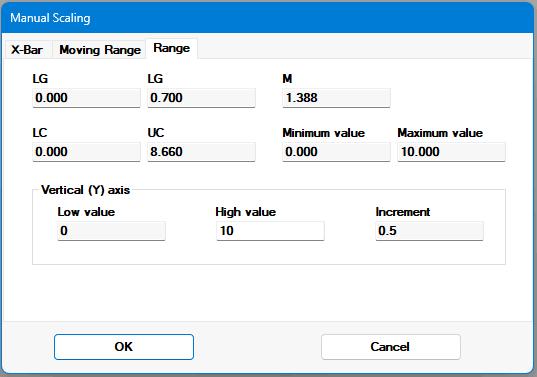
The Range and Moving Range chart tabs work similarly to the X-Bar Chart tab, except that the Low value is automatically set to 0 and the mean (Moving Range or R-bar) is displayed instead of specification limits.
Manually scaling for histograms
When a histogram is displayed on your screen, you can change the way that data is plotted relative to the x-axis of charts.
To change the scaling of a histogram, right-click on the chart and then click Scaling. Alternately, choose Scaling from the Options menu.
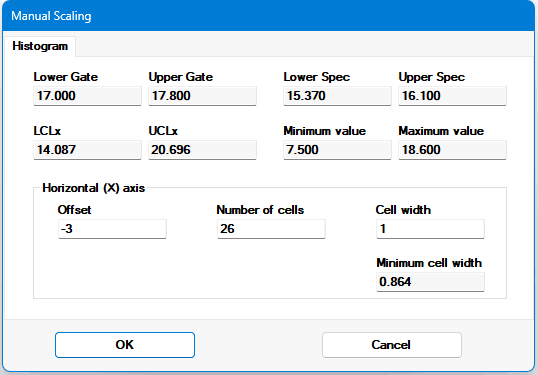
At the top of the histogram scaling dialog, you can get a precise reading of the values shown on the histogram and limit values. At the bottom of the dialog, you can type in different values for the Offset, Number of Cells, and Cell width. The program calculates the Minimum cell width based on the number of cells that you choose. It is best practice to select a cell width that is a value of 1, 2, or 5 times powers of 10 for easier to read labels on the x axis. For example, values of 2 could be 0.02, 0.2, 2, 20, 200, ...