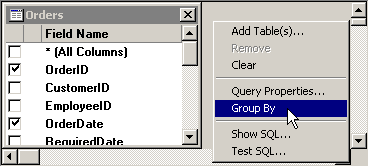
To enable the use of GROUP BY and aggregate functions in your query, right-click the gray background in the top half of the screen, and then select Group By from the right-click menu.
This adds a Group By column to the grid on the lower half of the screen.

To set the options for each cell in the Group By column, click the cell and then choose an option from the drop-down menu.
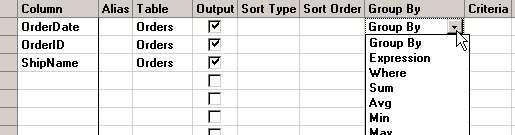
Options available in the Group By column include clause identifiers and aggregate functions.
The clause identifiers include:
Group By
Use Group By to define groups of information on which to perform calculations using one of the aggregate functions (see below). For sample queries using Group By, click here.click here.
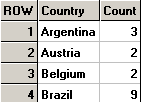
The following example defines each group of information by country, and then it counts the number of records in each group.

Testing this query returns the following result set:
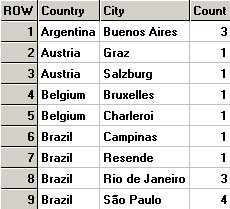
The following example defines each group of information by the combination of country and city, and then it counts the number of records in each group.

Testing this query returns the following result set:
Expression
When using a complex aggregate function (see below) to calculate a value in a Column, the calculated value should be designated as an Expression. For a sample query using Expression, click here.click here.
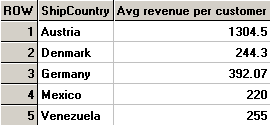
The following example defines each group of information by country, and then it calculates an average dollar value per customer each country.

Testing this query returns the following result set:
Where
To specify criteria for a field that isn't used to define groupings, select the Where option. By default, this hides the field from the query result set. For a sample query using Where, click here.click here.
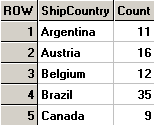
The following example uses the Where clause to filter for orders placed during 2005. For those orders, the query defines each group of information by country, and then it counts the number of records in each group.

Testing this query returns the following result set:
The aggregate functions include:
Sum and Sum Distinct
For each group defined by Group By, the Sum function calculates the sum of the values you specify, and the Sum Distinct function calculates the sum of only the unique values that you specify. For most connections, the specified values must be numbers.
If no groups have been defined, one overall sum is calculated for the field or values you specify.
For sample queries using Sum, click here.click here.
In this example, each product belongs to one category. Also, the number of units in stock and on order are logged for each product.
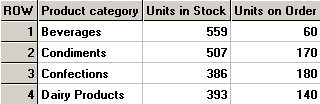
The following query defines each group of information by product category, and then it sums the number of units in stock and units on order for all of the products in each category.

Testing this query returns the following result set:
The following query does not define any groups. It sums the total number of units in stock and units on order for all of the products in all of the categories.

Testing this query returns the following result set:

Avg and Avg Distinct
For each group defined by Group By, the Avg function calculates the average of the values you specify, and the Avg Distinct function calculates the average of only the unique values that you specify. For most connections, the specified values must be numbers.
If no groups have been defined, one overall average is calculated for the field or values you specify.
For sample queries using Avg, click here.click here.
In this example, each product belongs to one category. Also, the price per unit is logged for each product.
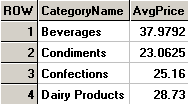
The following query defines each group of information by product category, and then it calculates the average unit price for all of the products in each category.

Testing this query returns the following result set:
The following query does not define any groups. It calculates the average unit price for all of the products in all of the categories.

Testing this query returns the following result set:

Min and Min Distinct, Max and Max Distinct
For each group defined by Group By, the Min function calculates the minimum of the values you specify, and the Min Distinct function calculates the minimum of only the unique values that you specify. For most connections, the specified values must be numbers or date/time values.
For each group defined by Group By, the Max function calculates the maximum of the values you specify, and the Max Distinct function calculates the maximum of only the unique values that you specify. For most connections, the specified values must be numbers or date/time values.
If no groups have been defined, one overall minimum or maximum is calculated for the field or values you specify.
For sample queries using Min and Max, click here.click here.
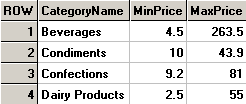
The following query defines each group of information by category, and then it calculates the minimum and maximum price of the products in each category.

Testing this query returns the following result set:
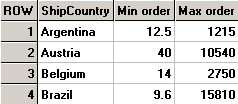
The following query defines each group of information by country, and then it calculates the minimum and maximum order shipped to each country.

Testing this query returns the following result set:
Count and Count Distinct
For each group defined by Group By, the Count function counts the number of items that you specify, and the Count Distinct function counts only the number of unique items that you specify. For most connections, the specified values can be text and characters, numbers, date/time values, and Yes/No values.
If no groups have been defined, one overall count is calculated for the values you specify.
For sample queries using Count, click here.click here.
The following example defines each group of information by country, and then it counts the number of records in each group.
Testing this query returns the following result set:
The following example defines each group of information by the combination of country and city, and then it counts the number of records in each group.
Testing this query returns the following result set:
StDev and StDevP
For each group defined by Group By, the StDev function estimates the standard deviation of the values you specify when evaluated as a population sample, and the StDevP function estimates the standard deviation of the values you specify when evaluated as a population. For most connections, the specified values must be numbers.
If no groups have been defined, one overall standard deviation is estimated for the values you specify.
For sample queries using StDev, click here.click here.
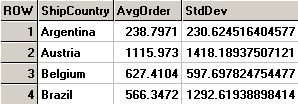
The following query defines each group of information by country, and then it calculates the average and standard deviation on the price of orders shipped to each country.

Testing this query returns the following result set:
The following query does not define any groups. It calculates the average and standard deviation on the price of all orders.

Testing this query returns the following result set:

Var and VarP
For each group defined by Group By, the Var function estimates the variance of the values you specify when evaluated as a population sample, and the VarP function estimates the variance of the values you specify when evaluated as a population. For most connections, the specified values must be numbers.
If no groups have been defined, one overall variance is estimated for the values you specify.
For sample queries using Var, click here.click here.
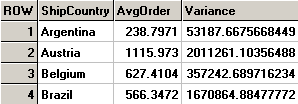
The following query defines each group of information by country, and then it calculates the average and variance on the price of orders shipped to each country.

Testing this query returns the following result set:
The following query does not define any groups. It calculates the average and variance on the price of all orders.

Testing this query returns the following result set:

More:
Hiding a column from the query results
Setting an alias for the column