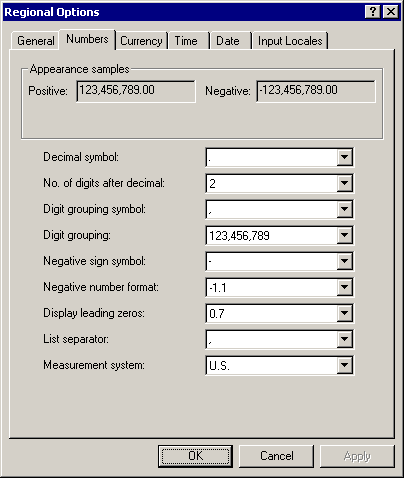
For instructions on Windows XP, click here:click here:
-
Open the Control Panel by clicking Start and then clicking Control Panel.
-
Open Regional and Language Options in Control Panel:
-
If Control Panel is displayed in Category view, click Date, Time, Language and Regional Options, and then click Regional and Language Options.
-
If Control Panel is displayed in Classic view, double-click Regional and Language Options.
-
On the Regional Options tab, under Standards and formats, click the locale whose date, time, number, and currency format you want to use.
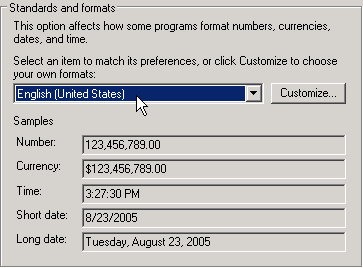
-
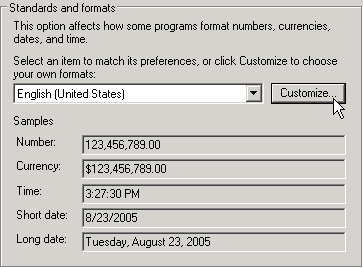
To view or change individual settings for date, time, numbers, or currency, click Customize.
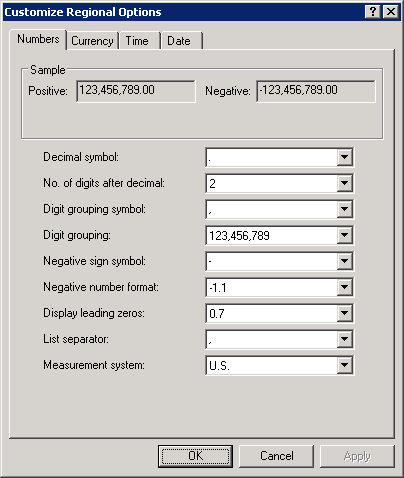
This displays tabs for Numbers, Currency, Time, and Date settings.
For instructions on Windows 2000, click here:click here:
-
Open the Control Panel by clicking Start, pointing to Settings, and then clicking Control Panel.
-
Double-click Regional Options in Control Panel:
-
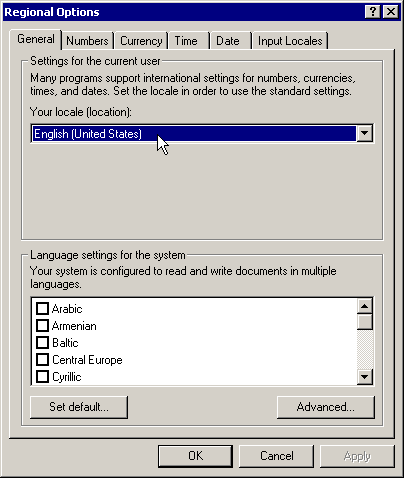
On the General tab, under Settings for the current user, in Your locale (location), click the locale whose date, time, number, and currency format you want to use.
-
To view or change individual settings for date, time, numbers, or currency, click the tab for Numbers, Currency, Time, or Date.