Import with XML
 This topic contains information about the legacy Import/Export Manager, which is being phased out from GainSeeker Suite. It is still available for use in version 8.3, but is being replaced by the new Import/Export Data function in the GainSeeker Utility module.
To Import using XML
1. With the Import Export manager loaded
2. Click on the Import button
3. Select the type of file to import
4. A file name is created as a default. You have the option to give the file a name
5. Browse to the drive and folder where the import file resides.
6. Click on Next button
7. Select the fields to import (information in fields with tags will be imported). Tags may be renamed by right clicking on the tag (see picture) or by click and dragging the map from the right window to the left.
8. If you rename some tags you may want to save these settings to reuse them at another date when you export or import data. To do this press the Save button, which will save the tag names to a file. Give the file a name and press OK. If you have a saved format file you can Load it.
9. Press Next button
10. Select the Standards and date range you want to import.
11. Press OK.
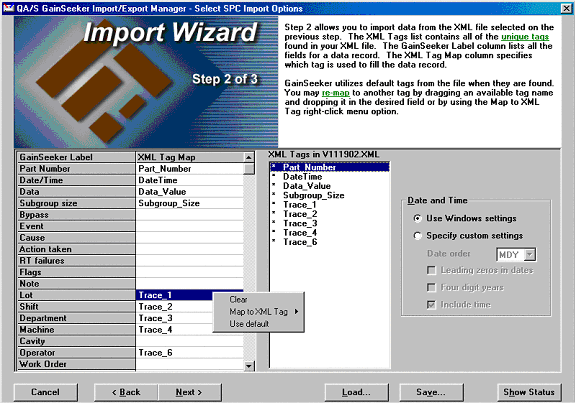
When Importing from an XML file only the fields that are in the file will have default tag maps. As in the illustration above note all fields are in the file being imported.
Mapping the fields.
The fields in the right column are the ones in the import file. The left column are the fields in the GainSeeker database. Mapping allows you to assure that each field receives the value it needs. To change mappings, you may click and drag items from the right column into the left, or right click on an item in the left column which gives the menu illustrated in the picture. If needed you may map any field from the import file to more than one field in the GainSeeker database.